Tutorial: from invitation to your own domain
The whole path from the invitation mail to your app on a custom domain.
This tutorial takes you from the invitation mail to your own app on your own domain. It builds the same small app as the Quickstart and then adds the parts around it: joining a team, the Run panel in detail, and a custom domain with a certificate. Plan on about 20 minutes, plus the time your DNS provider takes.
Before you start
- You have an invitation mail from Harthelm, or the link from the person who invited you.
- You have an account at your installation's sign-in provider with the same email address the invitation was sent to. Ask the person who invited you if you are not sure.
- For the last part: a host name you control, such as
hello.example.com, and access to its DNS records. Adding domains needs the Admin role in the team. With the Member role you can do everything up to Put the app on your own domain and ask a team admin for that part.
<console> is your installation's console address, <id> the number of your workspace, and <workspace domain> the domain of the dev URLs.
Accept the invitation
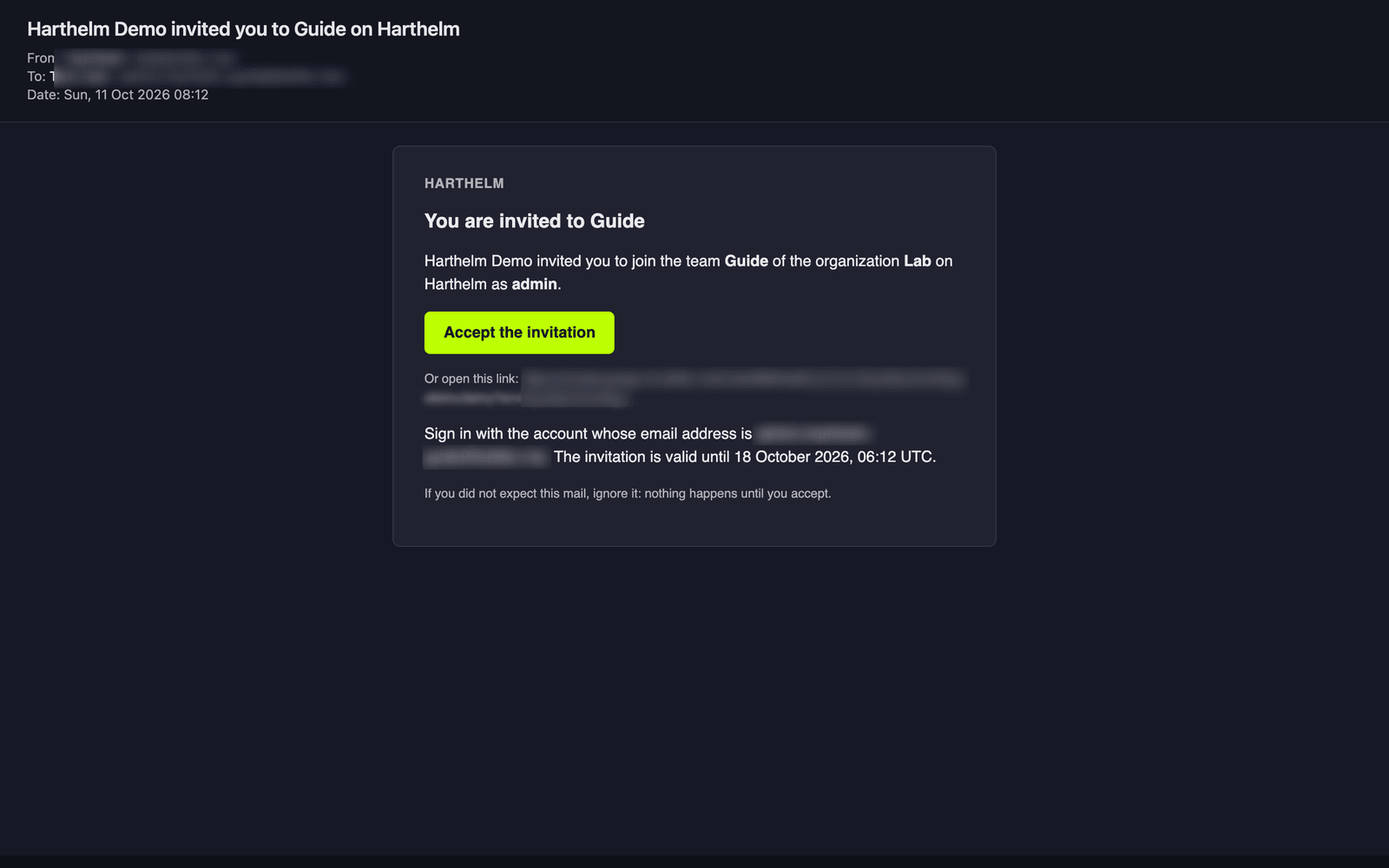
- Open the mail "… invited you to … on Harthelm". It names the team, the organization and your role. Click
Accept the invitation, or open the link below it. The link is
<console>/invite/<token>and works for 7 days. - The console asks you to sign in. Click Sign in with … and sign in with the account whose email address the mail names.
- Back in the console, the page says "You joined the team … of … as …". Click Open Harthelm.
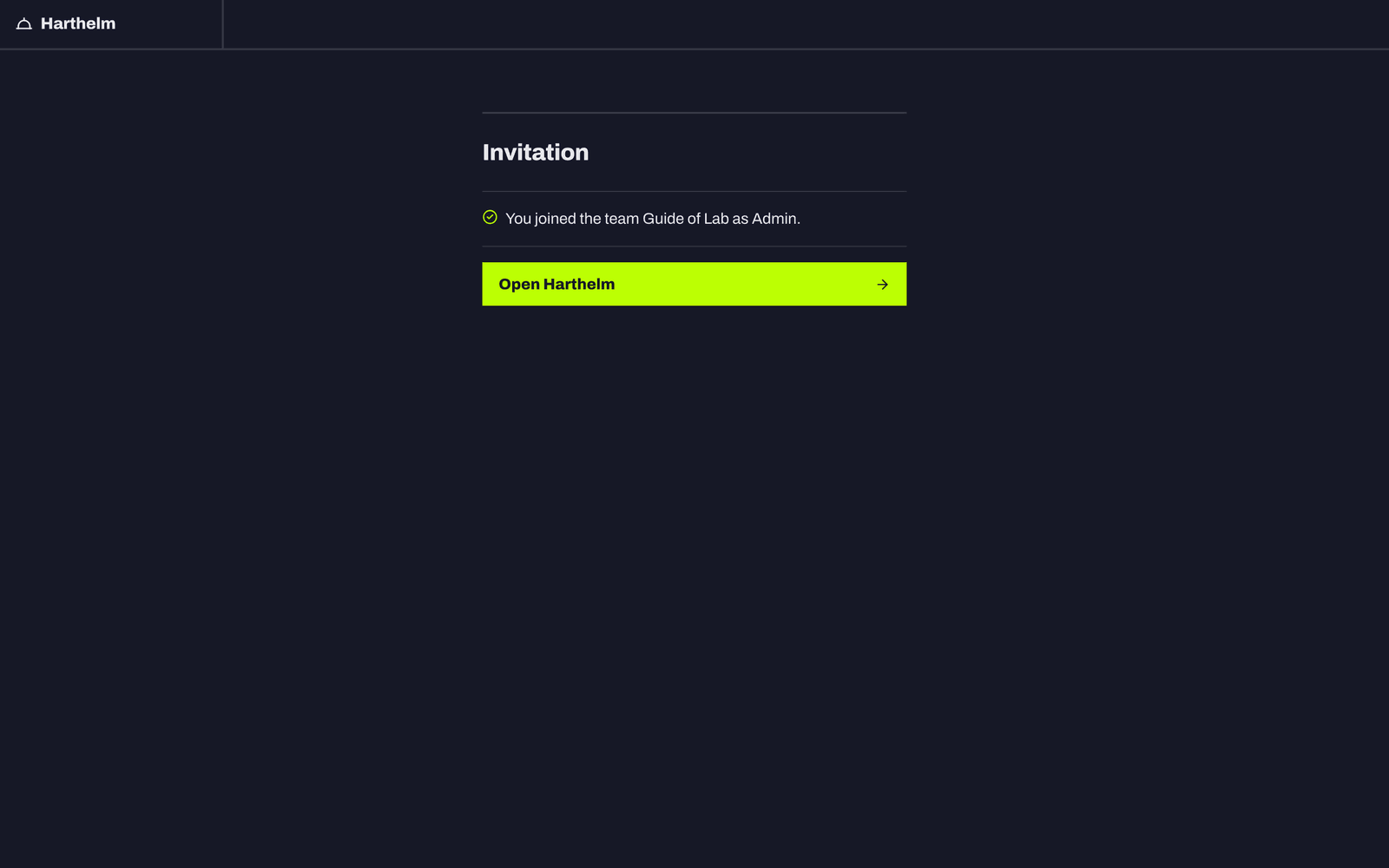
If the page says "This invitation is for another email address", click Sign out and use another account and sign in with the invited one. "This invitation was used, revoked, or has expired" means you need a new link. An invitation you have not accepted yet also shows in the console's top bar, with Accept and Decline.
Create a workspace
You land on Workspaces of your new team. The team switcher at the top shows which team you are in.
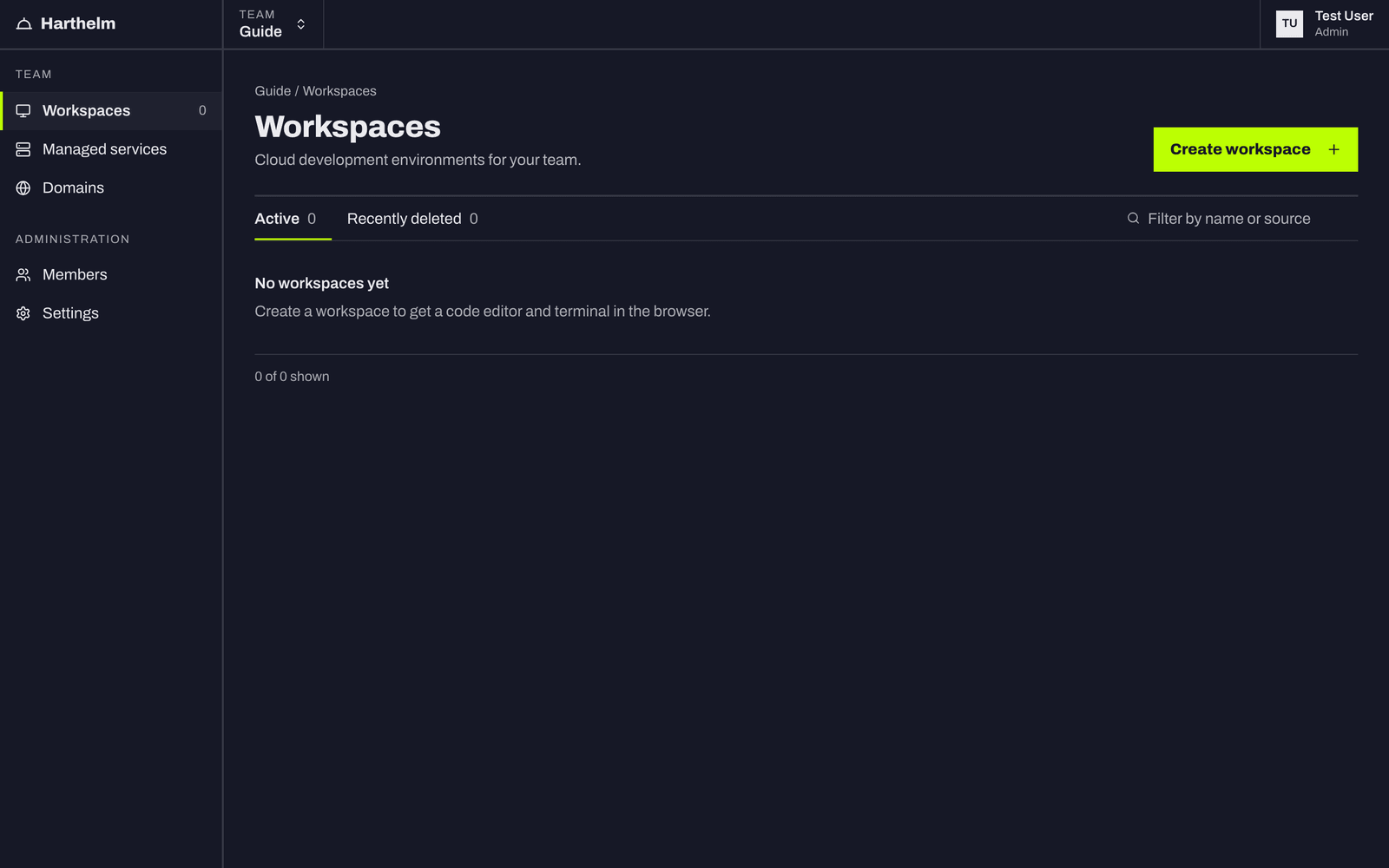
Click Create workspace and fill in the dialog:
- Start from: Empty. A Git repository works too once you connect your Git account; see Start from a repository.
- Name:
hello. - Base image and IDE plan: keep the preselected ones. The line under the plan shows its CPU, memory and disk.
- Availability: Sleeps when idle.
- Visibility: Private.
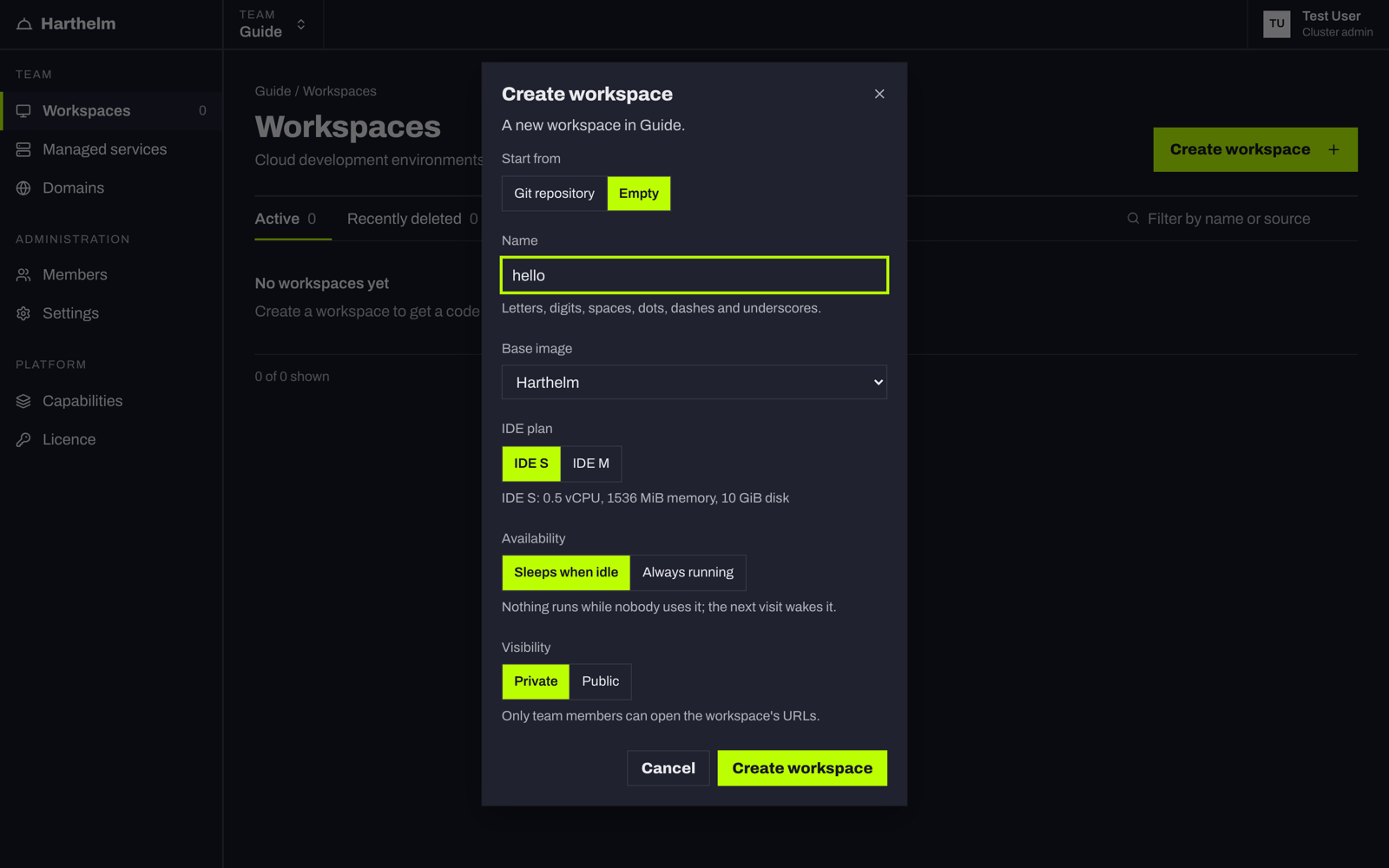
Click Create workspace. The console opens the workspace and shows its start ("Preparing storage", "Starting the IDE"), which takes from a few seconds to about a minute. Then the editor appears, with the terminal panel at the bottom and the workspace tools on the left rail. Tool labels at the bottom of the rail writes each tool's name under its icon. The status bar says "Workspace is running".
Write the app and harthelm.yml
In the terminal panel, click Open a terminal. It opens in /data/app, the root of your code. Create the
app, a web server without dependencies, and tell mise which Node.js to use:
cd /data/app
printf 'node 22\n' > .tool-versions
cat > server.js <<'EOF'
const http = require("node:http");
const port = Number(process.env.PORT || 3000);
http
  .createServer((req, res) => {
    res.writeHead(200, { "content-type": "text/html; charset=utf-8" });
    res.end(`<h1>Hello from Harthelm</h1><p>Workspace ${process.env.HART_WORKSPACE_ID}, path ${req.url}</p>`);
  })
  .listen(port, () => console.log(`listening on ${port}`));
EOF
Then create harthelm.yml next to it:
schema: harthelm/v1

prepare:
  - name: Install Node
    run: mise install node@22

services:
  web:
    type: steps
    steps:
      - name: Serve
        run: node server.js
    env:
      PORT: 3000
    ports:
      - port: 3000
        routes:
          - path: /
    health:
      port: 3000
      path: /
Click harthelm.yml in the editor's explorer to open it. The editor knows the file's schema: hover a key to read
what it means; mistakes are underlined.
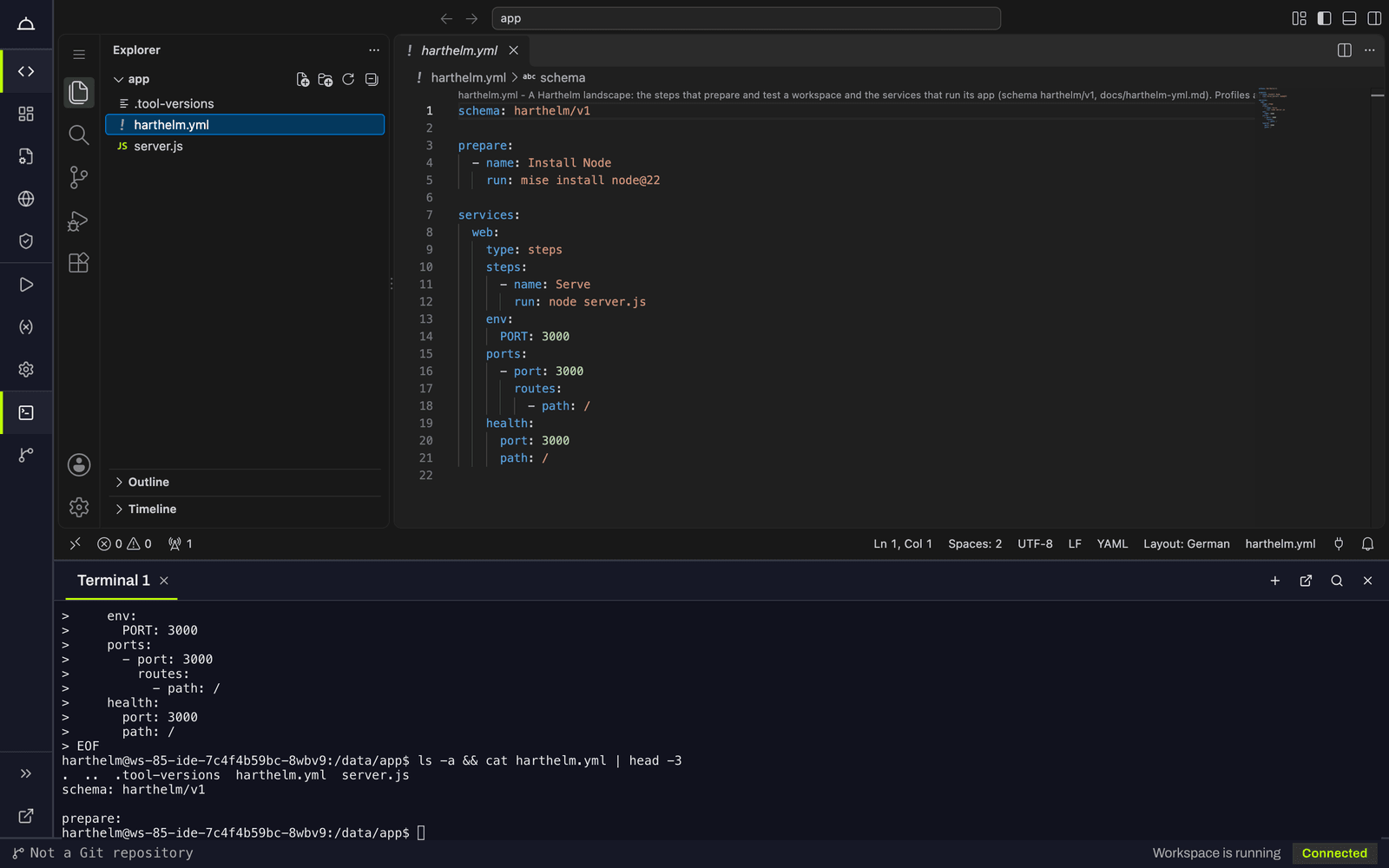
What the file says:
prepareinstalls Node once, before the services run.- The
stepsservicewebrunsnode server.js. Its last step is the server: Harthelm restarts it when it exits. - Its port 3000 gets the route
/of the dev URL. - The health check counts a replica as ready once
/answers.
Sync
- Click Run panel on the left rail. It says "This workspace has no landscape yet."
- Click Sync. The dialog Review changes lists what the Sync does:
webunder "To add", with its plan, CPU and memory, the resources of all replicas, and the team quota after the Sync. - Click Sync in the dialog.
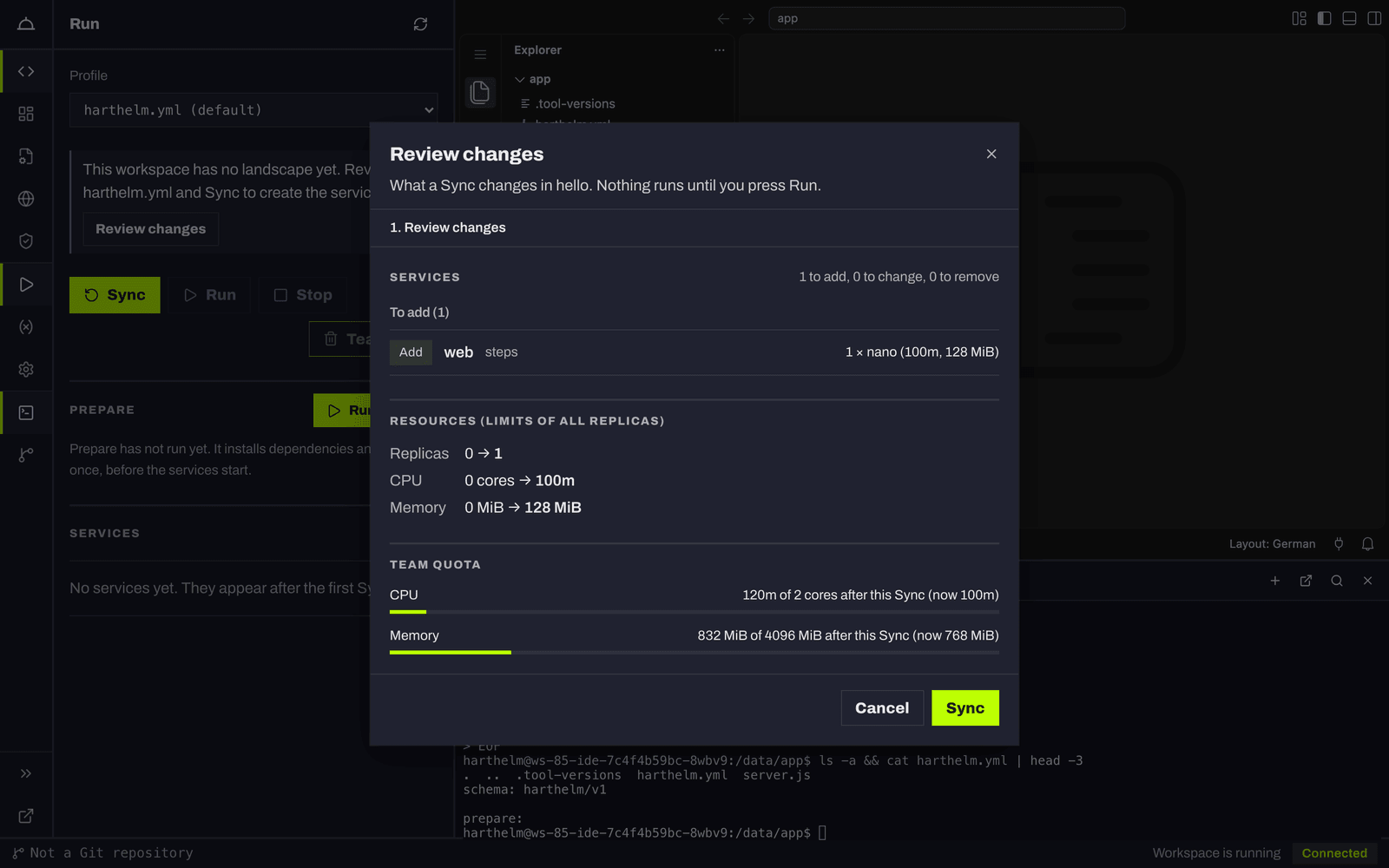
The panel shows "Applying changes to the cluster…" and then "In sync with harthelm.yml". web is listed, but nothing
runs yet: Sync creates services, Run starts them. If the dialog lists errors, it names the line and column in
harthelm.yml; fix the file and click Check again.
Prepare and Run
-
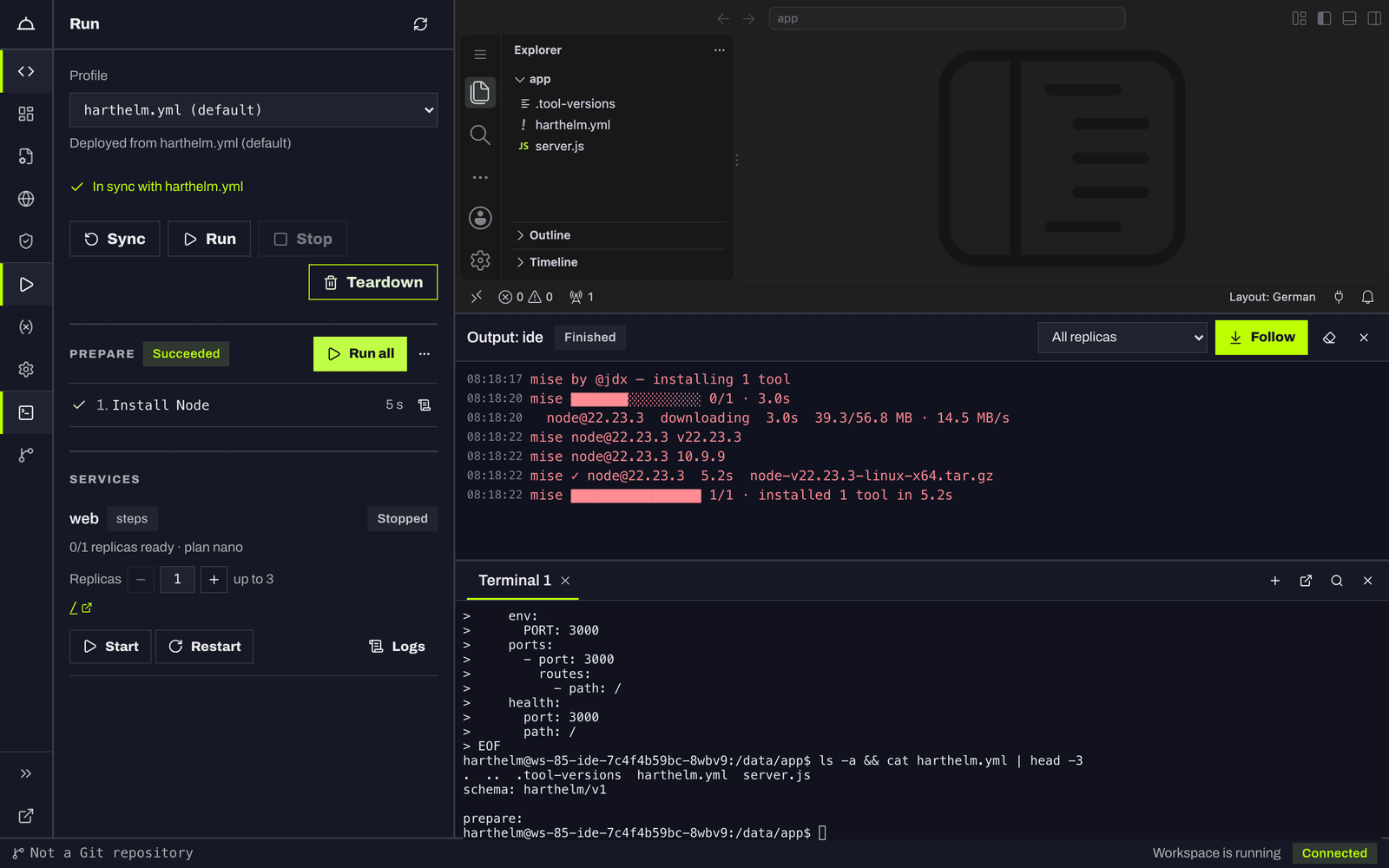
In the Prepare card, click Run all. The step runs in the workspace; the output icon next to it shows its log. Wait until the stage shows Succeeded.
-
Click Run at the top of the panel.
webgoes from Starting to Running with "1/1 replicas ready". Its row shows the link /, the route of port 3000, and the controls Stop, Restart and Logs.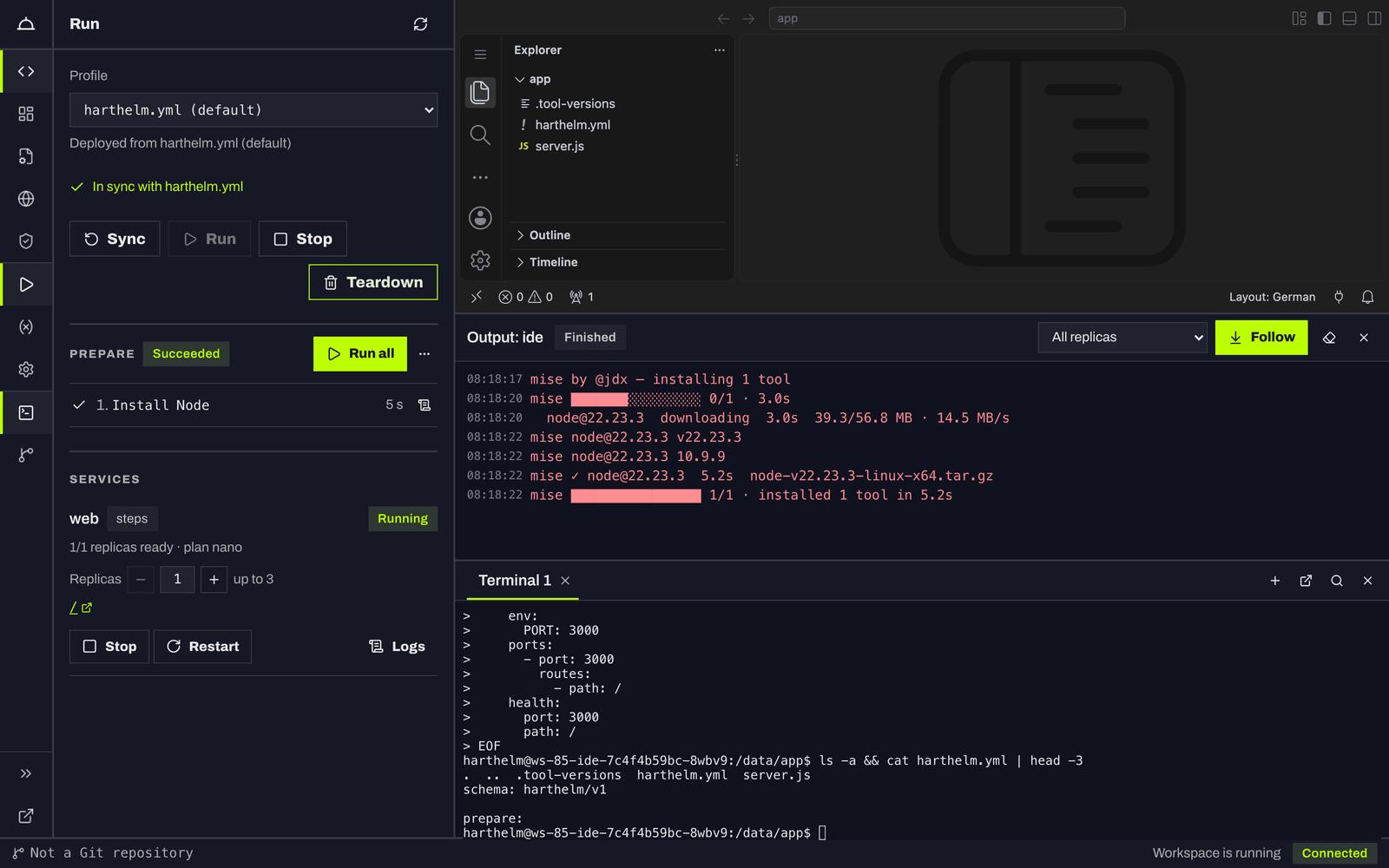
If web shows Failed, click Logs on its row: the output of node server.js says why. The most common
cause is a skipped prepare; run it, then Run again.
Open the app
Click the link / in the row of web. A new tab opens the dev URL, https://<id>-3000.<workspace domain>/,
and shows "Hello from Harthelm". The same address is in the URL column of the workspace list.
The dev URL is private: signed-in members of your team can open it, other visitors are sent to the sign-in. When nobody uses the workspace or the service for a while (60 minutes by default), they sleep. The next visit wakes them; the page waits a few seconds, and files and settings are kept. You do not need to keep the tab open.
Change something
Edit server.js in the editor, for example the text in <h1>. In the Run panel, click Restart on the row of
web and reload the app's tab. A change to harthelm.yml itself needs a Sync first: the Run panel says
"harthelm.yml changed since the last Sync" until you do.
Put the app on your own domain
Domains belong to the team. Go back with All workspaces at the top of the rail, then click Domains in the console's navigation.
Add the domain
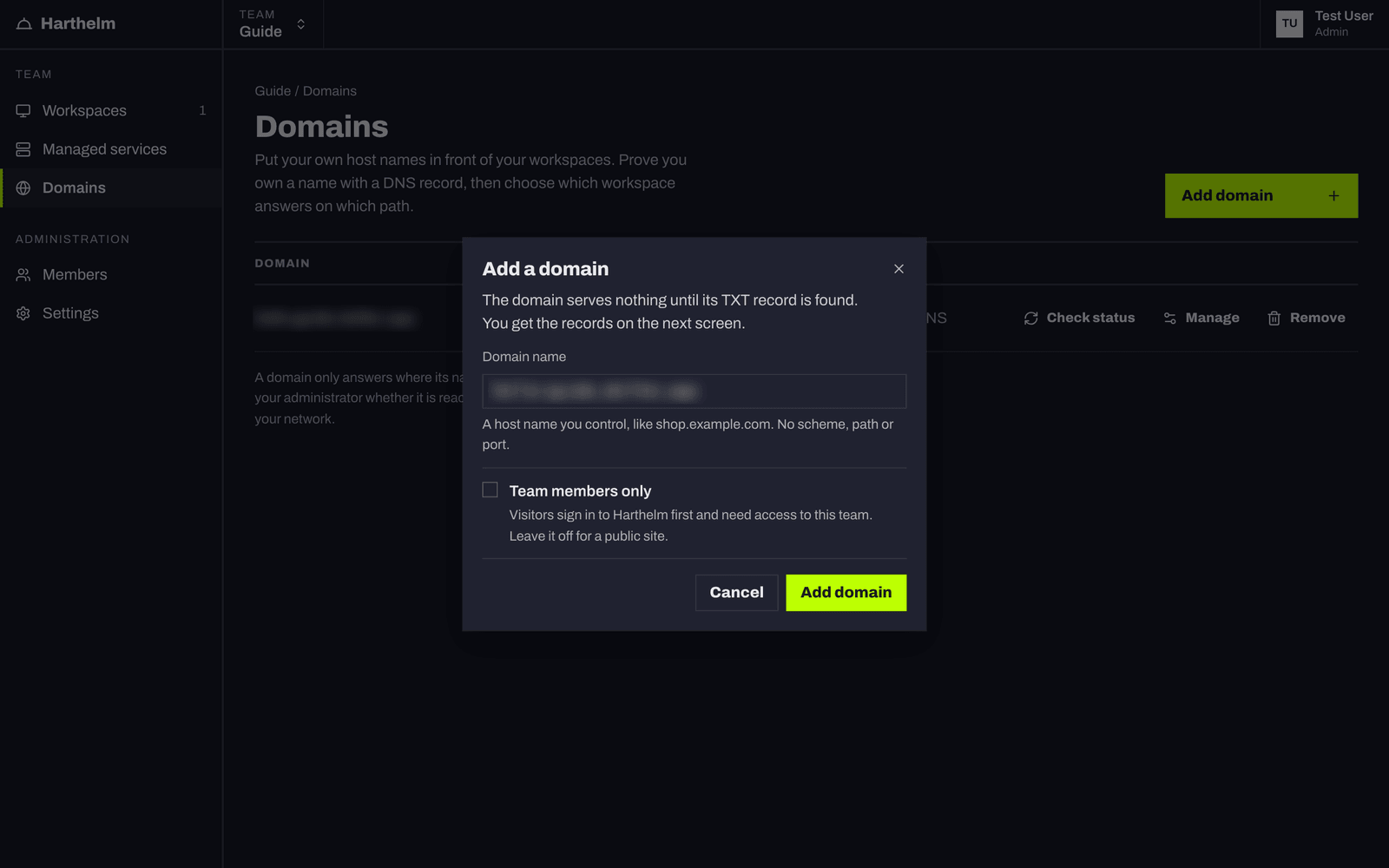
Click Add domain. Type your host name, for example hello.example.com, without https:// or a path. Leave
Team members only off for a public site. Click Add domain.
Set the DNS records
The domain opens on its Verification tab with two kinds of records to set at your DNS provider:
- Prove you own the domain: a TXT record named
_harthelm.hello.example.comwith the valueharthelm-verification=…. Copy both exactly. Only this record proves the name is yours. - Send traffic here: a CNAME record of
hello.example.comto your installation's address, or A records if the console lists addresses instead. This record makes the name reach Harthelm.
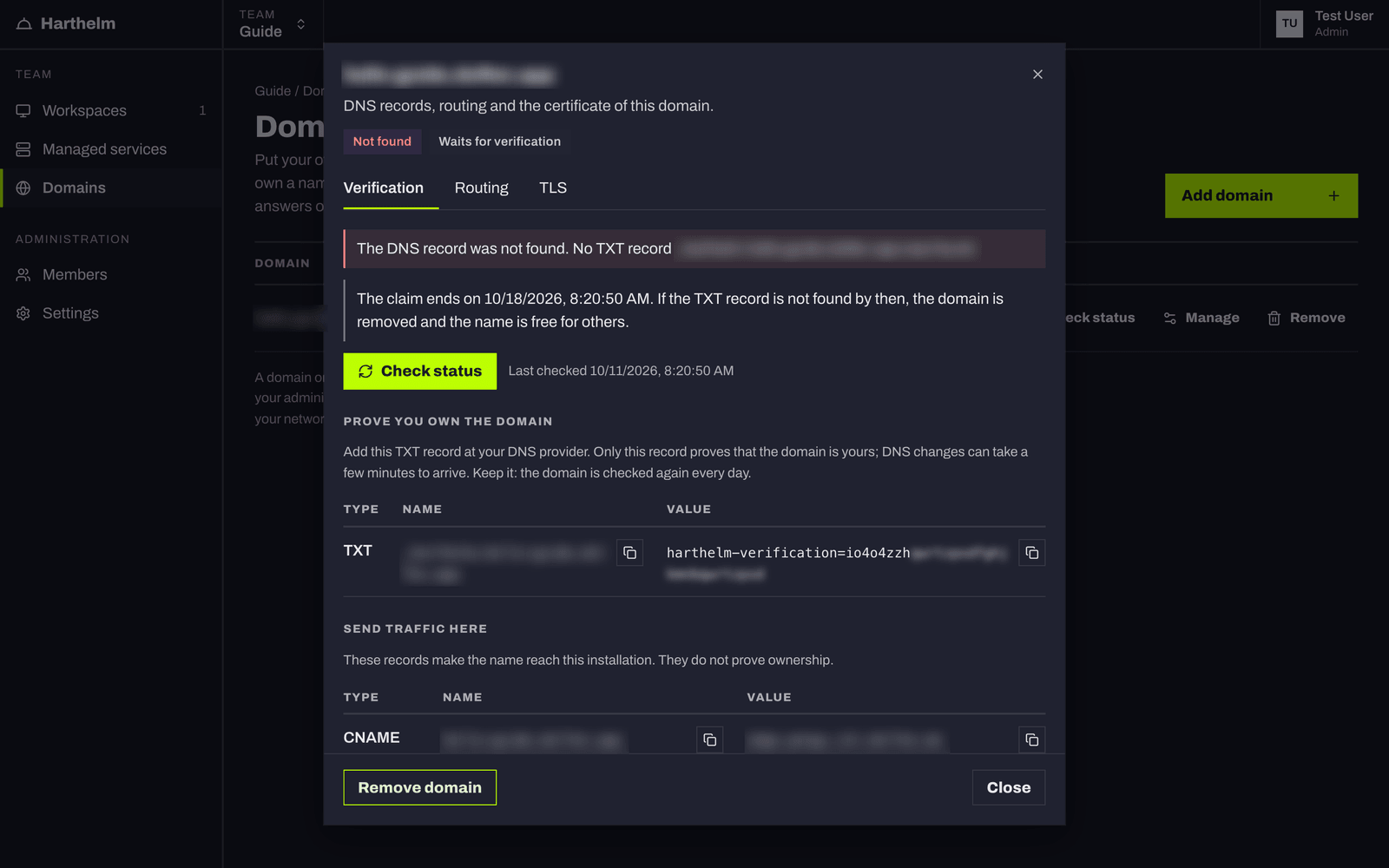
Create both records, then click Check status. Once the TXT record is visible on the internet, often within a minute, the status turns to Verified. Harthelm also keeps checking by itself. A domain that is not verified within 7 days is removed again. Keep the TXT record afterwards: it is checked every day.
Route it to the workspace
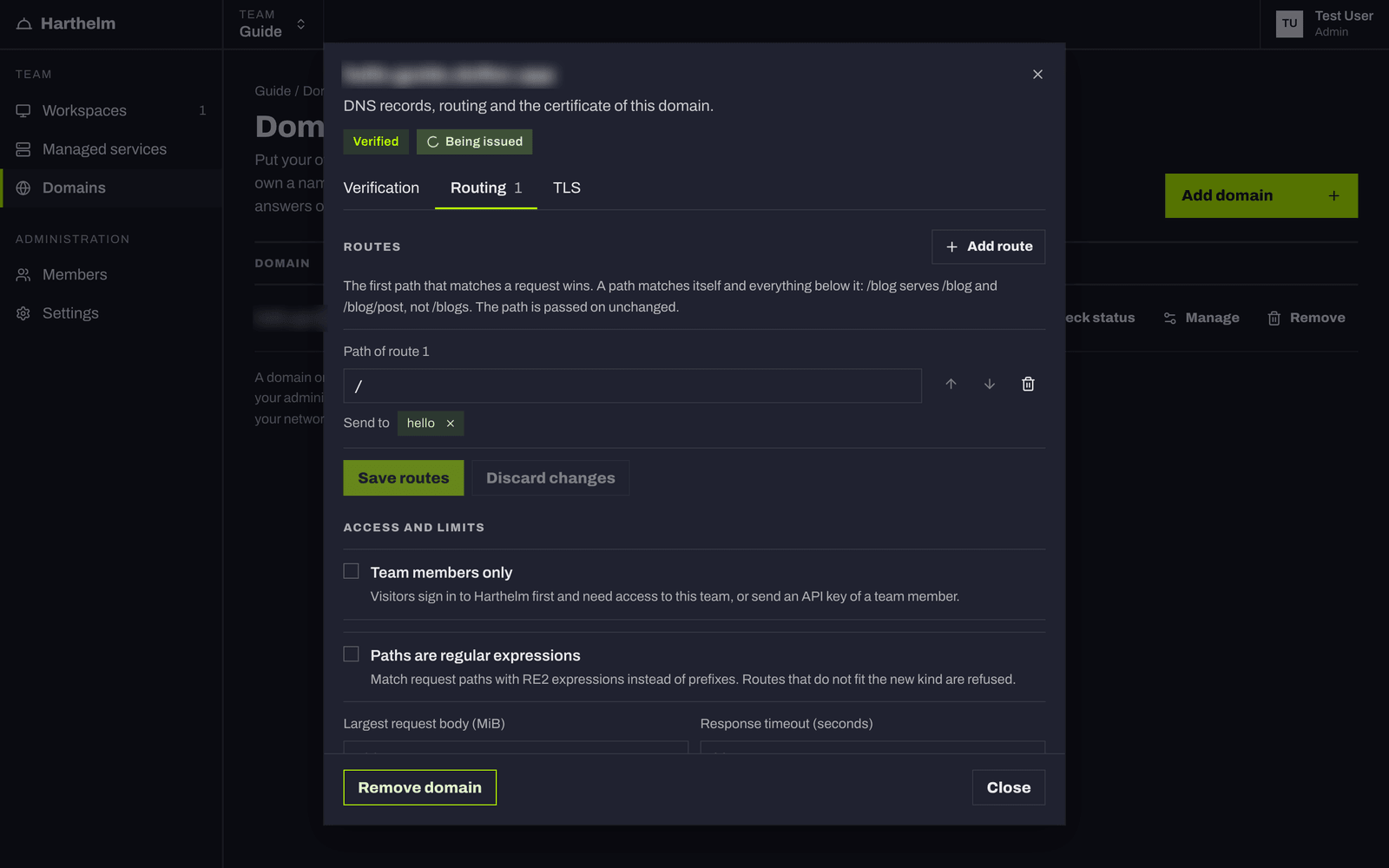
Open the Routing tab and click Add route. The first route's path is /. Under Send to,
choose hello from Add workspace…, then click Save routes.
Wait for the certificate
The TLS tab shows the certificate: Being issued for about a minute after the verification, then Issued. It renews itself.
Open it
Open https://hello.example.com/. It shows the same page as the dev URL. Unlike the dev URL, a domain without
Team members only is public: anyone who reaches the name sees the app.
Whether visitors outside your network can reach the name depends on how your installation is exposed; the note on the Domains page says the same. Ask your administrator.
Done. You have a workspace with an app that Harthelm runs, wakes and puts to sleep, on your own domain.