Custom domains
Add a domain, prove you own it, point it at Harthelm and route paths to workspaces.
A custom domain puts your own host name, such as shop.example.com, in front of one or more of your team's
workspaces, with a certificate Harthelm requests and renews. Domains belong to the team; adding and changing them needs
the team Admin role.
You need a host name you control and access to its DNS records.
Add the domain
Open Domains in the console's navigation and click Add domain. Type the host name, without a scheme, path or port. Leave Team members only off for a public site. Click Add domain.
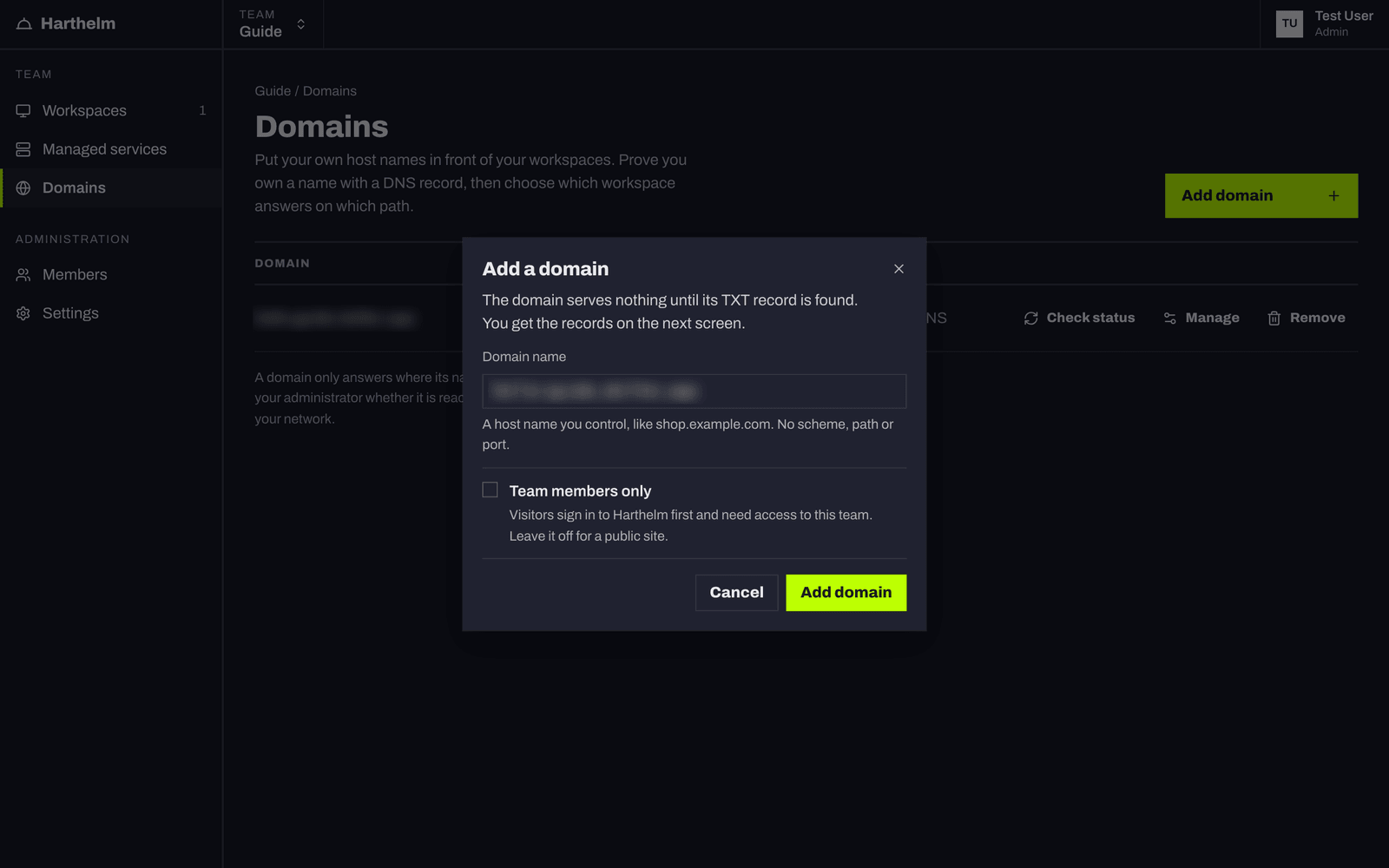
The domain serves nothing until its TXT record is found.
Set the DNS records
The domain's Verification tab, and hart domain show, list two kinds of
records:
| Purpose | Record |
|---|---|
| Prove you own the domain | TXT _harthelm.shop.example.com with the value harthelm-verification=… |
| Send traffic here | CNAME shop.example.com to your installation's address, or A/AAAA records if the console lists addresses |
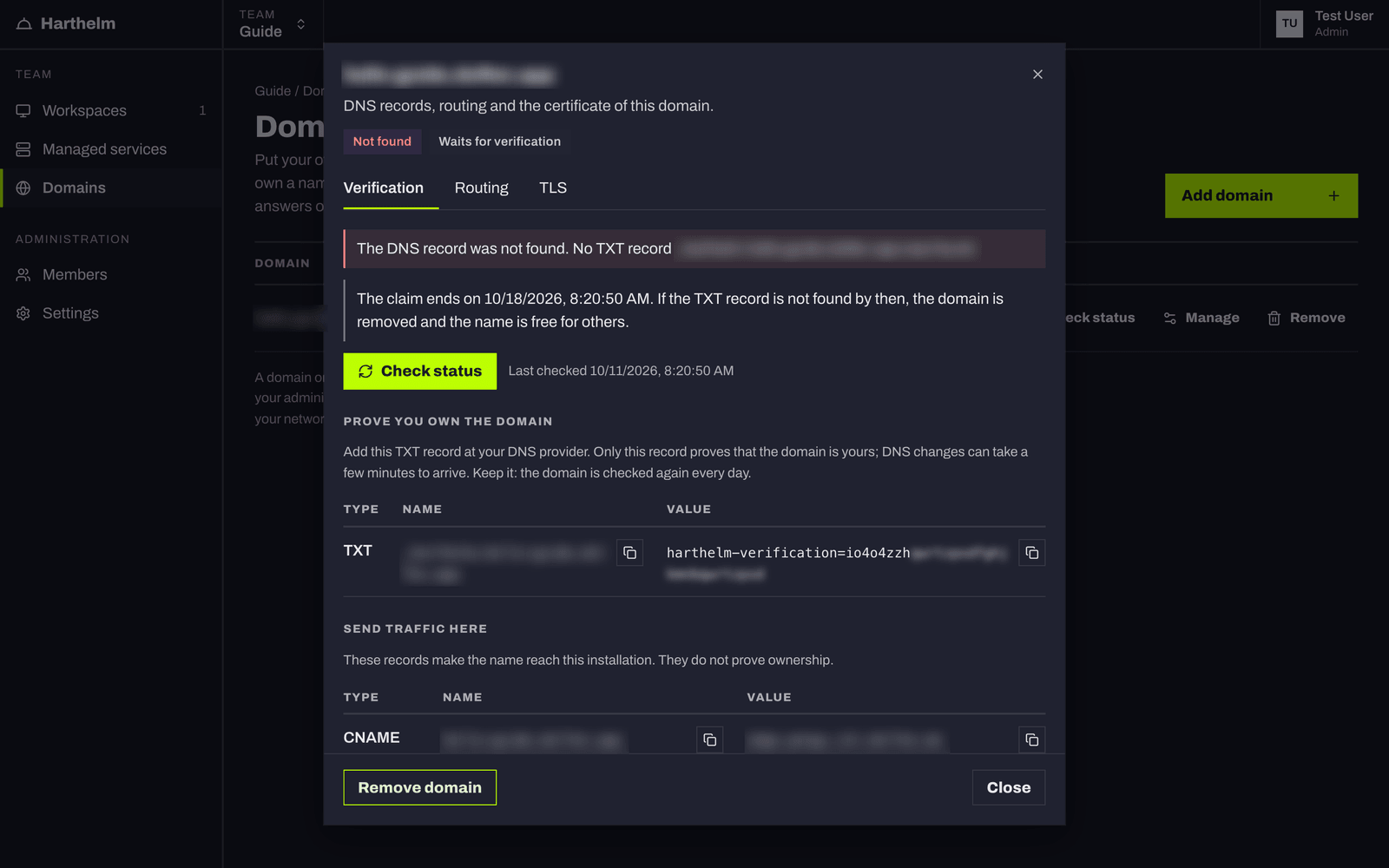
Only the TXT record proves ownership; the CNAME or A records only make the name reach Harthelm. Copy the TXT value
exactly. Most DNS providers allow no CNAME on the root of a domain (example.com): use the provider's alias record, or
A records if your administrator lists them.
Verify
Click Check status, or:
hart domain verify shop.example.comhart waits for the result and exits with 1 and the reason when the record is not found. Harthelm also checks by
itself, often at first and less often as the domain gets older. DNS changes can take a few minutes to arrive; a second
check within 10 seconds is refused.
- The claim ends after 7 days. A domain that is not verified by then is removed, and the name is free again.
- Keep the TXT record. Harthelm checks it every day. If it goes missing, the console warns and the domain stops serving after a grace period (7 days by default): it lapses. Its routes and settings are kept, and a check that finds the record again brings it back.
Route paths to workspaces
Open the Routing tab, click Add route, type the path (the first is /), choose the workspace under
Send to → Add workspace…, and click Save routes.
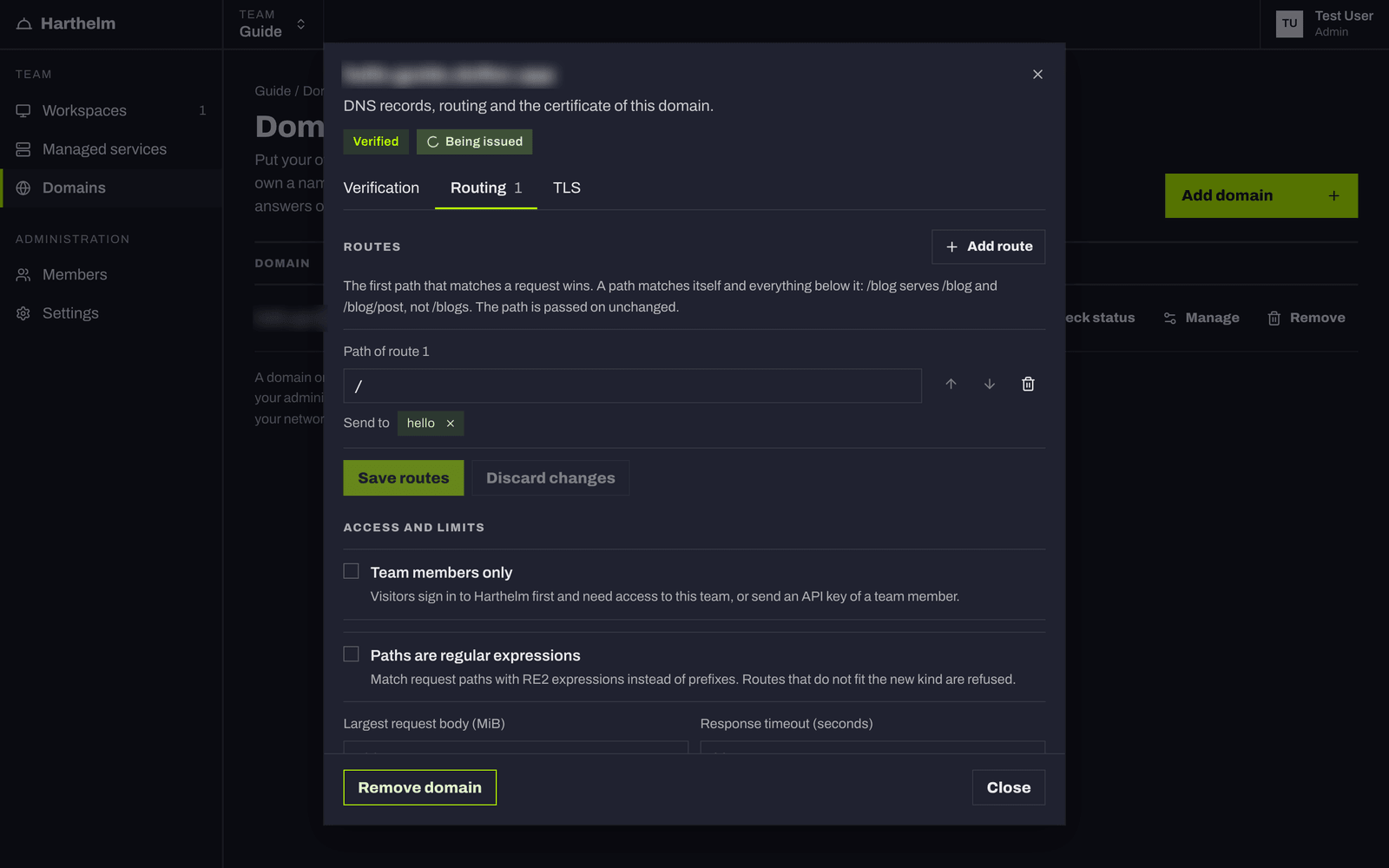
The same with hart, using workspace ids:
hart domain route shop.example.com /=123hart domain route replaces all routes; without routes it shows them.
You can set routes before the domain is verified; they start to work once it is. Several paths and several workspaces
per path are in Path routing and split traffic.
The certificate
The TLS tab shows the certificate:
| State | Meaning |
|---|---|
| Waits for verification | It is requested as soon as the domain is verified |
| Being issued | Usually a minute |
| Issued | It renews itself |
| Covered | A wildcard certificate of the installation covers the name |
| Not managed | Your installation does not create certificates for domains; your administrator serves the name |
To use your own certificate, paste the chain (the domain's certificate first) and its unencrypted private key, both PEM, under Use your own certificate and click Upload certificate. You renew it by uploading a new one before it expires. Use an automatic certificate goes back.
Team members only
Team members only under Routing → Access and limits (or hart domain set --restricted) makes
visitors sign in to Harthelm and have access to the team, or send a team member's API key; see
Private apps. Leave it off for a public site.
Limits
Largest request body (MiB) and Response timeout (seconds) override the installation's defaults for this
domain; 0 takes the default. Larger requests get a 413.
hart domain set shop.example.com --timeout-seconds 120Remove a domain
Remove domain, or hart domain delete shop.example.com, stops serving the name at once and deletes its
certificate. Delete the DNS records at your provider yourself.
When it does not work
| You see | What to do |
|---|---|
| Not found, the domain stays unverified | The TXT record is not visible yet, or its name or value differ. Check both exactly, wait a minute, check again |
| "Another team already uses this domain" | The name is claimed by another team |
| "This name belongs to the installation itself" | Names of the installation cannot be added |
| "The team added as many domains as it may in an hour" | Try again later |
| The certificate stays failed | The name does not reach the installation, or the installation has no automatic certificates; ask your administrator |
| The name works only inside your network | It depends on how your installation is exposed; ask your administrator |