Work in the IDE
The editor, terminals, the Run panel and harthelm.yml help in the IDE.
When you open a workspace, the console shows its IDE: VS Code in the browser, on the code in /data/app, with the
workspace's tools on the left rail and a terminal panel at the bottom.
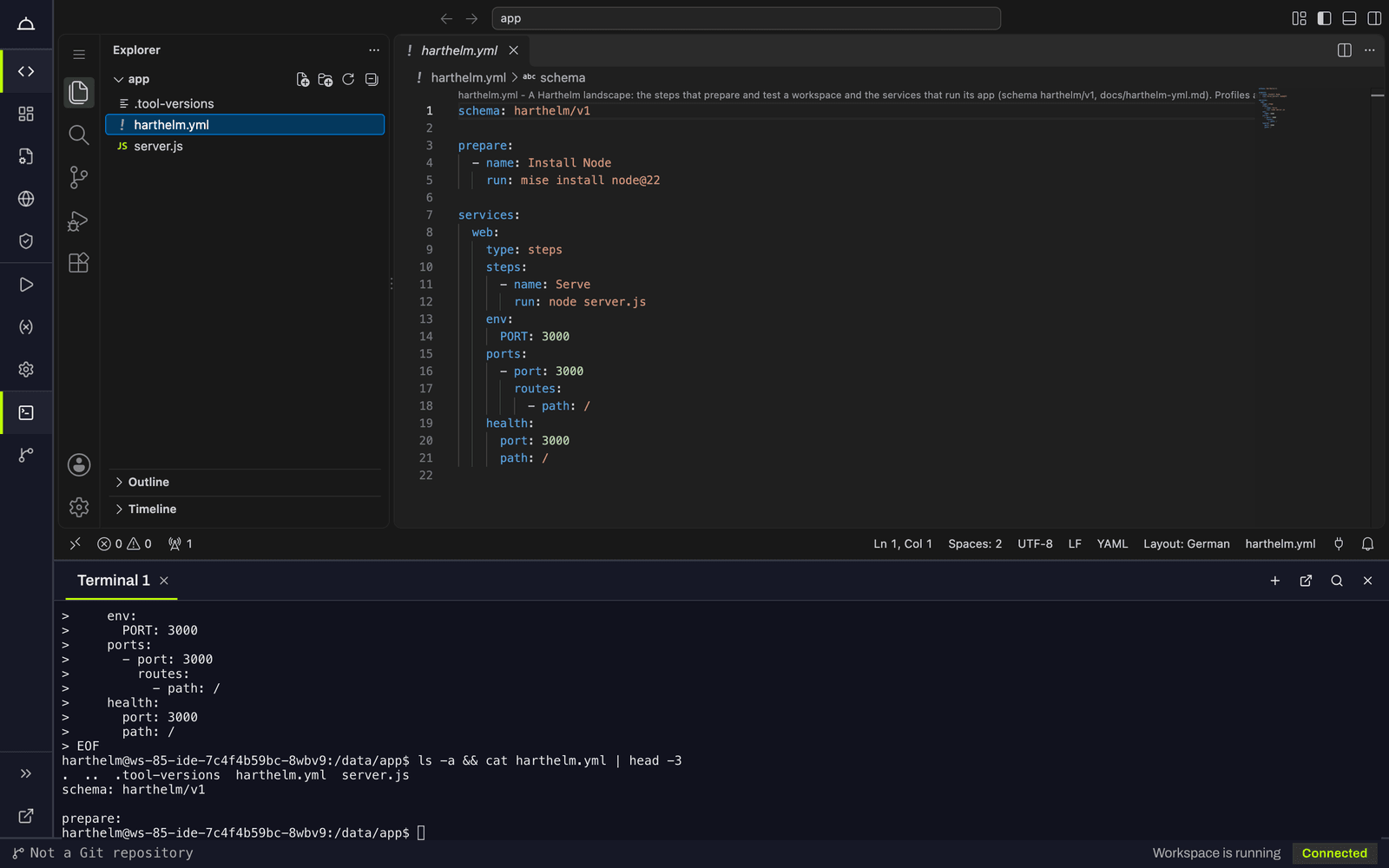
Open the IDE
Click a workspace in Workspaces, or run hart ws open. Opening a sleeping workspace
wakes it. Its start shows "Preparing storage" and "Starting the IDE"; a wake usually takes a few seconds.
Some browsers do not keep the IDE's sign-in inside an embedded frame. Then the console opens the IDE in its own tab and remembers this for the browser; Try embedded again switches back. Open IDE in a new tab works at any time.
The IDE and terminals need the Editor role. A Viewer sees the Run panel, the landscape and the files read only.
Terminals
The terminal panel at the bottom says "No terminals yet." until you click Open a terminal. Terminals open in
/data/app; New terminal opens another. Terminal on the rail toggles the panel and lists every
terminal open in the workspace, including your colleagues'.
- Each terminal belongs to the person who opened it. What you type in someone else's terminal runs as them, and commits made there carry their name and, if their sign-in provider verified it, their email; the console says so above it.
- Terminals keep running when you close the tab, but a closed tab does not keep the workspace awake: when it sleeps, they end. For a long build, open a keep-awake window.
- Your home directory is emptied when the workspace restarts or wakes. Keep your work in
/data/app. - On a Mac, holding a letter key in the terminal does not repeat it: macOS shows its accent menu in the browser
instead (Backspace and the arrow keys still repeat). To get repeating letters, run
defaults write -g ApplePressAndHoldEnabled -bool falsein the Mac's own terminal and restart the browser.
Install tools
Every workspace has mise and Nix. Install what your app needs in the prepare stage, so the services find it too:
prepare:
  - name: Install Node
    run: mise install node@22
A .tool-versions or mise.toml file in /data/app tells mise which versions to use, in terminals and services alike:
printf 'node 22\n' > /data/app/.tool-versionsharthelm.yml help
The editor knows the schema of harthelm.yml: it completes keys, shows what a key means when you hover it and
underlines mistakes, also offline. For a second opinion:
hart validatehart validate checks the file with the platform's own rules, with line and column for
every problem. With a sign-in it also checks the plan names.
Landscape config on the rail edits the same file as a form, as YAML, or both side by side. The YAML stays the source; comments and formatting you did not touch are kept.
The Run panel
Run panel on the rail is where the landscape runs:
- Profile: which file the next Sync uses, and which one the landscape is deployed from.
- Sync, Run, Stop, Teardown at the top. A banner says whether the services match the file.
- Prepare: Run all, each step's state and output; More stages → Run test stage.
- Services: each service's state, replicas, plan and links to its routes, with Start, Stop, Restart, Logs and the replica count.
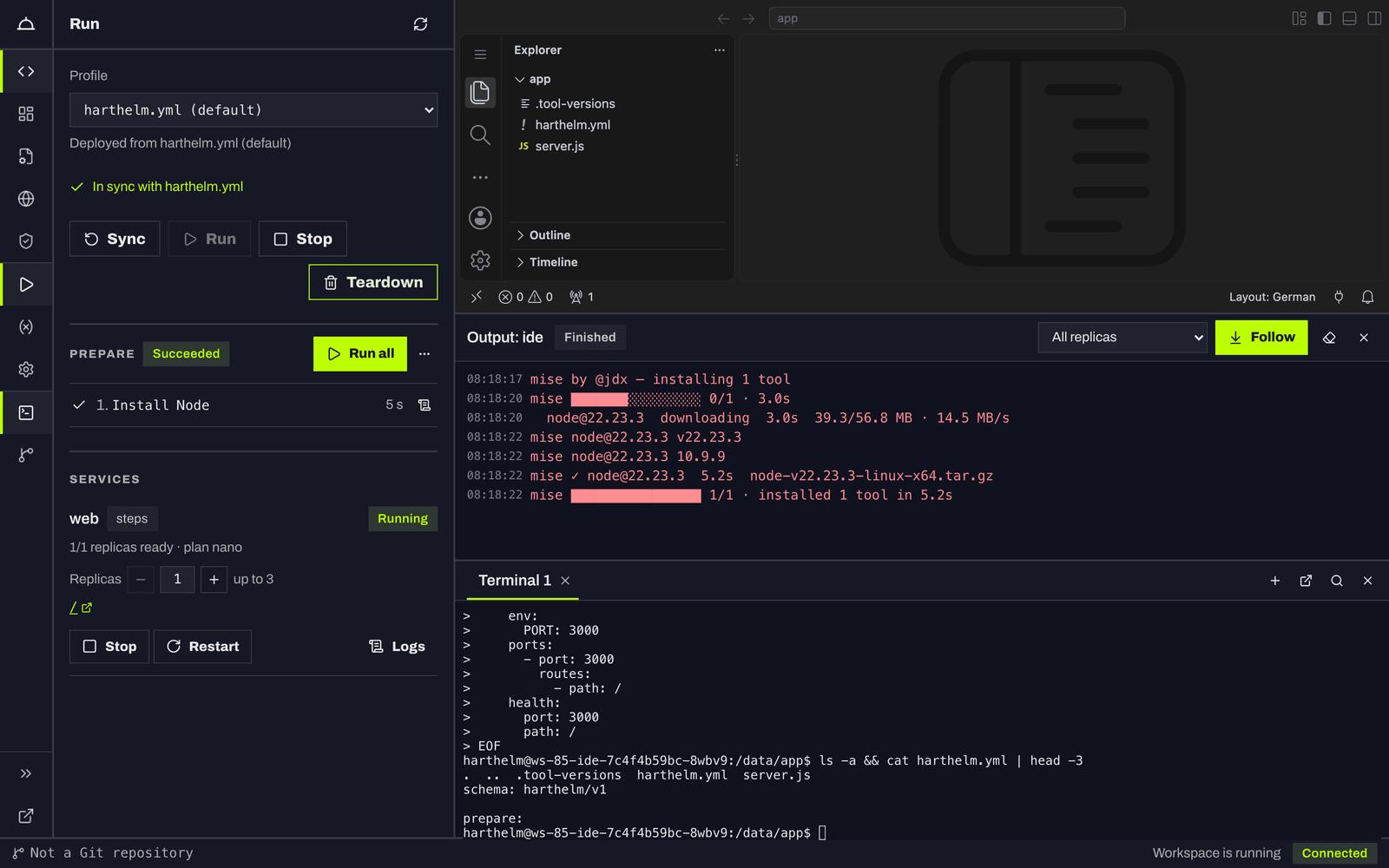
After you change code, Restart the service. After you change harthelm.yml, Sync first.
Preview
Preview on the rail shows your app on the workspace's address inside the console. Pick the port and type a path; Open in a new tab opens it outside. Some apps refuse to be shown inside another page; open those in a new tab.